Archive for the ‘Sync’ Category

Trick: Command line sync for Outlook

Thursday, June 14th, 2007

Easy2Sync for Outlook has a neat user interface which is just great for most of us. But sometimes, you want to use batches or links. And for these occasion you can also run the sync from command line with parameters.

Our sync program for Outlook offers a lot of things to tweak here:

/SyncAllAndExit
/SyncAll
/SyncAndExit:MyTasktName
/Sync:MyTaskName
/FromAutostart
/IgnoreNetworkError
/NoSplash
/RunOutlookAfterClose
/Delayed
/Delayed:n

I won’t go into details here, most things explain themselves here, I think. If you’re interested, just run the program and press F1, there’s a link to the details in the programs help. (If you want to download the Freeware Edition, click here.)
Easy2Sync for Outlook 1.23 is out!

Friday, June 8th, 2007

Another day, another release. Version 1.22 didn’t last very long because we had the wrong language in the assistant. That’s fixed now, our apologies for any inconvenience caused.

The new release also fixes a minor problem with configuration under Windows 98 (when working with diskettes.)

Do you want to try Easy2Sync for Outlook? You can download the Freeware Edition here.

Synch Outlook

Asynchronous WHAT??

Monday, March 26th, 2007

Yes, Easy2Sync has some special terms, because some very special things can happen during the synchronization (both for file synch and e-mail synch).. Want to know what that means? Simply press F12 (which open the options), and on the first page wait with the mouse cursor over the synch case item you want to know more about. A tooltip with the explanation will appear.

Download Easy2Sync for Files/ Download Easy2Sync for Outlook.

Synchronzing with an USB stick that changes its drive letter

Friday, March 23rd, 2007

On some Windows systems, USB devices (USB sticks, USB hard disks or whatever) like to change their drive letter. It’s their idea of having fun. Plug it in and it’s E:\, take it out, plug it in again and it’s F:\. Great. How can you synchronize your files with such a chameleon? Any path that you enter is bound to be wrong, sooner or later. So how can you synchronize with it?

Well, you can, with Easy2Sync.

First, make sure that the device has a unique name. You can edit that it its properties, if necessary.

At the task, where you’d normally enter the drive letter, you can enter the drive name, along with some special markers:

In General: %DRIVELETTER:MyDriveName%:\

The percent signs, the colon and the word “DRIVERLETTER” are pre-defined markers. You only have to fill in the name of your USB drive. If your USB stick had the name “MyUsbStick”:
%DRIVELETTER:MyUsbStick%:\

Or if you want to synchronize with a subdirectory:
%DRIVELETTER:MyUsbStick%:\MySubdirectory\

Try it:

Download Easy2Sync for Files

Download Easy2Sync for Outlook

Outlook Backup vs. Virus-Scanner

Monday, March 12th, 2007

As Golem reports, there’s a problem with Microsoft’s OneCare that can lead into the deleting of the entire PST file (which contains all your e-mails). Well, that’s definitely a great protection against e-mail viruses, but perhaps not what you want… 😉

As always, doing a backup is a great idea if you like your data.

You can backup or synchronize your Outlook data with Easy2Sync for Outlook. However, if you only want to automate the backup your PST-file, simply use Easy2Sync for Files. Even the Freeware Edition will be good enough for this job. You can get it here: Download Easy2Sync for Files.

Easy2Sync for Outlook 1.20

Wednesday, March 7th, 2007

Yes, it’s release time. Now it’s the turn of Easy2Sync for Outlook.

There are quite a few changes this time, like UI improvents, a second trigger folder, a new task type and enhanced Vista compatibility.

You can download the latest version here.

Making things bigger – the smallest tip ever

Friday, February 9th, 2007

Today’s the shortest tip ever: Did you now you can change the size of Easy2Sync’s main window? Simply drag the border or click on the maximize button. (This works with Easy2Sync for Files and Easy2Sync for Outlook.)

Organizing your tasks II – Other sync view filters

Monday, February 5th, 2007

If you have many tasks, it’s time to get organized. If you haven’t already done so. Use the task collections to group several synchronization tasks into one task collection. And then enable the filter “Don’t show elements of task groups” in the view menu. And suddenly your file / e-mail synch became a lot easier. You’re seeing much less tasks now (don’t worry, they’re still there), but you can run all of them in one go with the task collection.

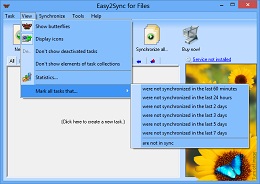
The same applies to deactivated tasks. You can deactivate a synch if you currently don’t need it any more, but still don’t want to delete it. So, simply deactivate the synchronization tasks and use the menu item in the view menu to hide tasks like these:
Screenshots

Protecting your private calendar items with Easy2Sync for Outlook

Friday, February 2nd, 2007

Easy2Sync can synchronize both your e-mails and your calendar items.
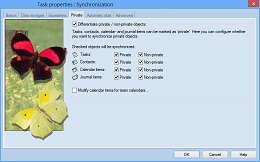
This can be useful if you want to share your calendar with you co-workers. But what about your private data in your calendar? That’s none of you co-workers’ business. No problem with Easy2Sync for Outlook – you can simple exclude private items from the PST sync. Simply active the “private filter” in your task properties.

Synchronize private e-mails

It also works the other way round. You can synchronize (or copy) only your private items, if you’d prefer that, for example for your private calendar at home. Download it now and try it.

Organizing your tasks I – Tabs

Tuesday, January 30th, 2007

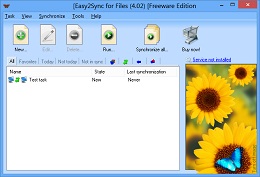
In Easy2Sync (for Files and for Outlook) you store the data for the syncs in “tasks”. If you have many tasks, then may need some tricks to organize them. The tabs are a great help here. They’re a row of texts and images just above the task list:
Synchronization tasks

Depending on the selected tab, you’ll only see the tasks, that match the tab’s criteria.

* All: Well, just all tasks
* Favorites: All tasks that have been synchronized in the last 7
days, but not today.
* Today / Not today: Only tasks that (haven’t) been synchronized
today
* Not in sync: Tasks where the last sync wasn’t successful
* Icons: They symbolize a task type (copy, sync, overwrite, …. Only
tasks with this type are shown

These view filters will help to choose the right synchronization task for your e-mails, contacts, etc. or files. Want to see it live? Try the Freeware Edition of Easy2Sync for Files or Easy2Sync for Outlook.

Easy2Sync for Outlook – Version 1.19 is available

Thursday, January 18th, 2007

It’s hard to make great things better, so we’re working on the details by now:

Easy2Sync for Outlook

  • A completely automatic sync on system shutdown
  • An automatic backup of the configuration
  • An exit button in the tray menu

You can get the latest version here.

Sync Outlook Express with Easy2Sync for Files

Saturday, December 16th, 2006

The headline may sound a bit strange, as we have another product named Easy2Sync for Outlook. But since that’s only for Outlook (and not Outlook Express). But don’t worry, with some limits, you can still sync them.

Search your harddisk for *.dbx files or go to Tools / Options / Maintenance and choose the StoreFolder button to find the folder where your mail files are stored. You can use Easy2Sync for Files to synchronize these files with another PC. If you want to synchronize this directory ONLY (and no other directories), the Freeware Edition is all you need, so you won’t have to buy anything.

BUT

Yes, now comes the BUT part. Easy2Sync for Files doesn’t understand what’s inside the file, it just copies the newer version over the folder. And if you’ve modified the same file on both PCs single the last sync, you’re in trouble. Easy2Sync will ask you with version you’ll want to keep and which one to loose.

The solution: Synchronize often. Especially always synchronize before switching to the other PC.

New Outlook sync software version

Friday, November 24th, 2006

Synchronizing 2 Outlook installations can be tricky, but it just got easier. A new version of Easy2Sync for Outlook is out. Since the program already has a huge feature list, the changes are mostly details, like more intuitive error messages in several special cases.

Sync Outlook with filters
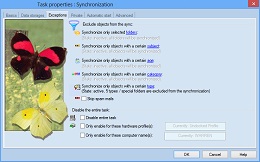
[Image: Some of the filters that Easy2Sync for Outlook supports]

You can use Easy2Sync for Outlook to synchronize normal PST files or Exchange Accounts (even “Public folders”). The image shows some of the filter options that are supported, like for example categories.

You can download the latest version here.

Trick: Protecting the Outlook sync configuration

Monday, November 20th, 2006

There are things that are good for the user. And there’s the exact opposite.

Some users have the talent to do the 100% opposite. Mess up the configuration. Change the PST file path. And so on.

So, you might want to protect your Outlook sync configuration. Easy2Sync for Outlook has a powerful option for that, but it’s a but hidden and can be overlooked.

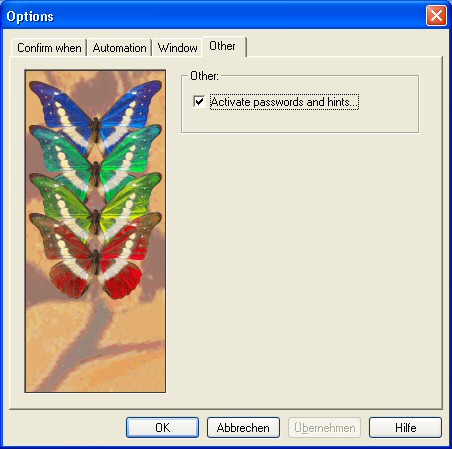
But actually it’s quite easy. Open the configuration and look at the “Other” tab:
Synchronize - Protect options with passwords

You’ll get a subdialog and here you can configure passwords and notification messages for different situations. Starting the program, editing a task, editing the options, running an Outlook sync from the tray icon. And so on.

Please click here to try it and get more info about Easy2Sync for Outlook.

Trick: Synchronize “Contacts” with “Kontakte”

Saturday, November 18th, 2006

Outlook comes in may languages. And your “Contacts” folder may be called Contacts, Contactos, Kontakte, Contacs, Contati, Kontakter, Contactpersonen, etc. You get the picture. 😉

The problem begins if you want to synchronize different Outlook versions (in different languages versions). Normally you’d suddenly have to contacts folders, one in each language. That’s any excact synchronization. But not what you want. You want “Contacts” synchronized with “Contactos” (or whatever).

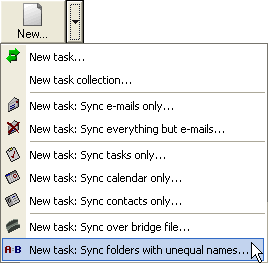
Easy2Sync for Outlook includes a trick to do just that. Theres an assistant to sync folders with “unequal names”:
Synchronize Contacts with Kontakte

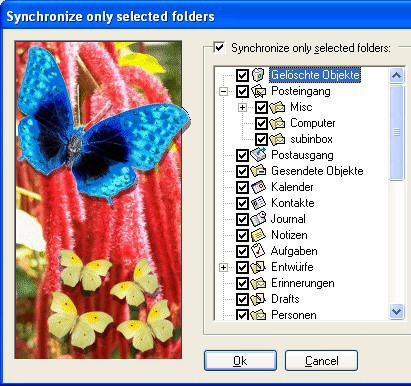
Here you can specify these two folders for a new task. That task will synchronize only the contents of THESE folders, ignoring the different names, ignoring everything around it.

Almost perfect.

The only remaining problem is, if you still want to synchronize everything else. You’d simply create a new task for that. But then you’d still synchronize these 2 contacts folders. That’s why you have to exclude them. That’s easy:
Exclude folders from Outlook sync

That’s all. Wanna try? Here’s more about how to synchronize Outlook.